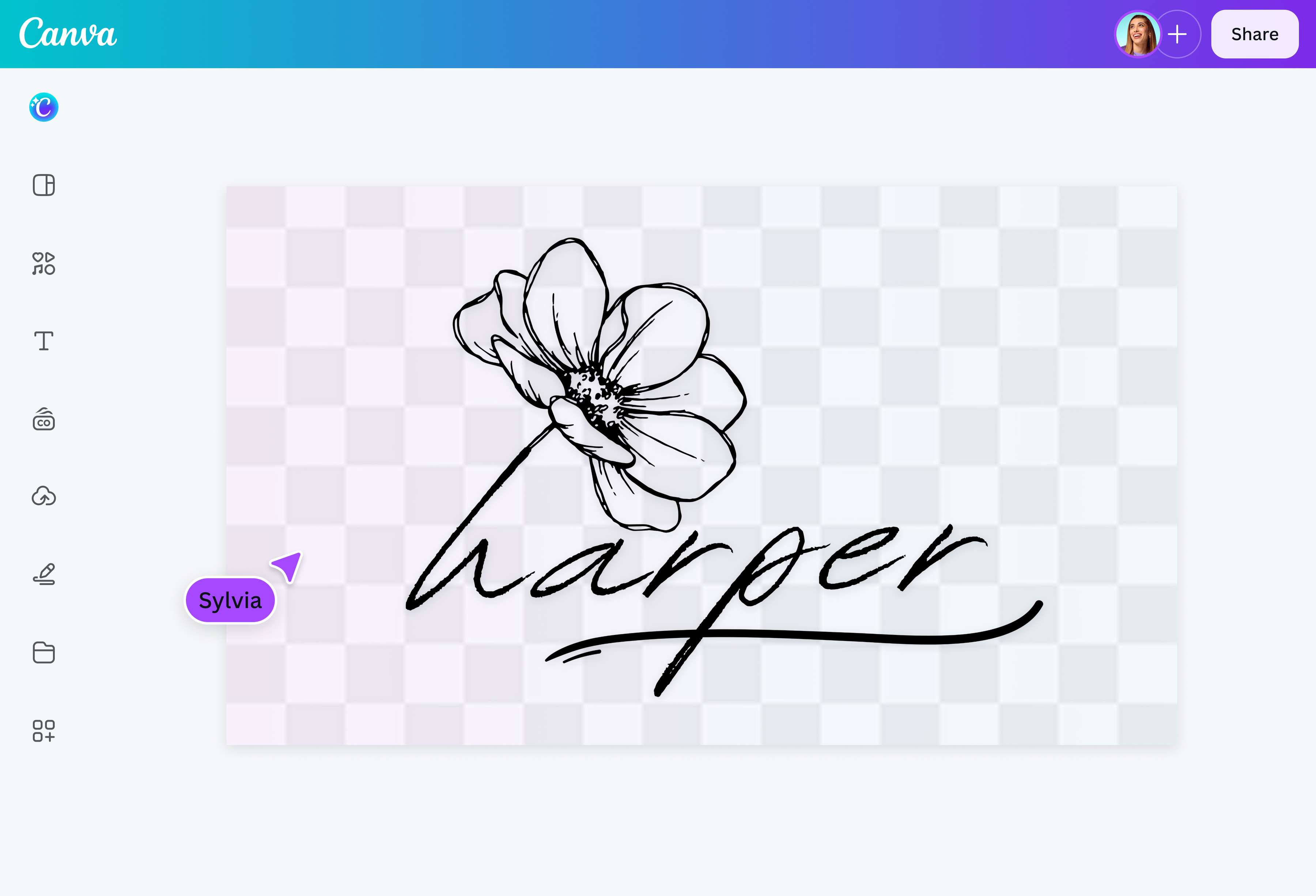
Extract your signature from an image
Turn your handwritten signature into an e-signature in one click.
Drop files here or
By uploading, you agree to Canva’s Terms of Use. Read our Privacy Policy.
With Canva’s Background Remover, extract signatures perfect for attaching to formal documents, contracts, and agreements.
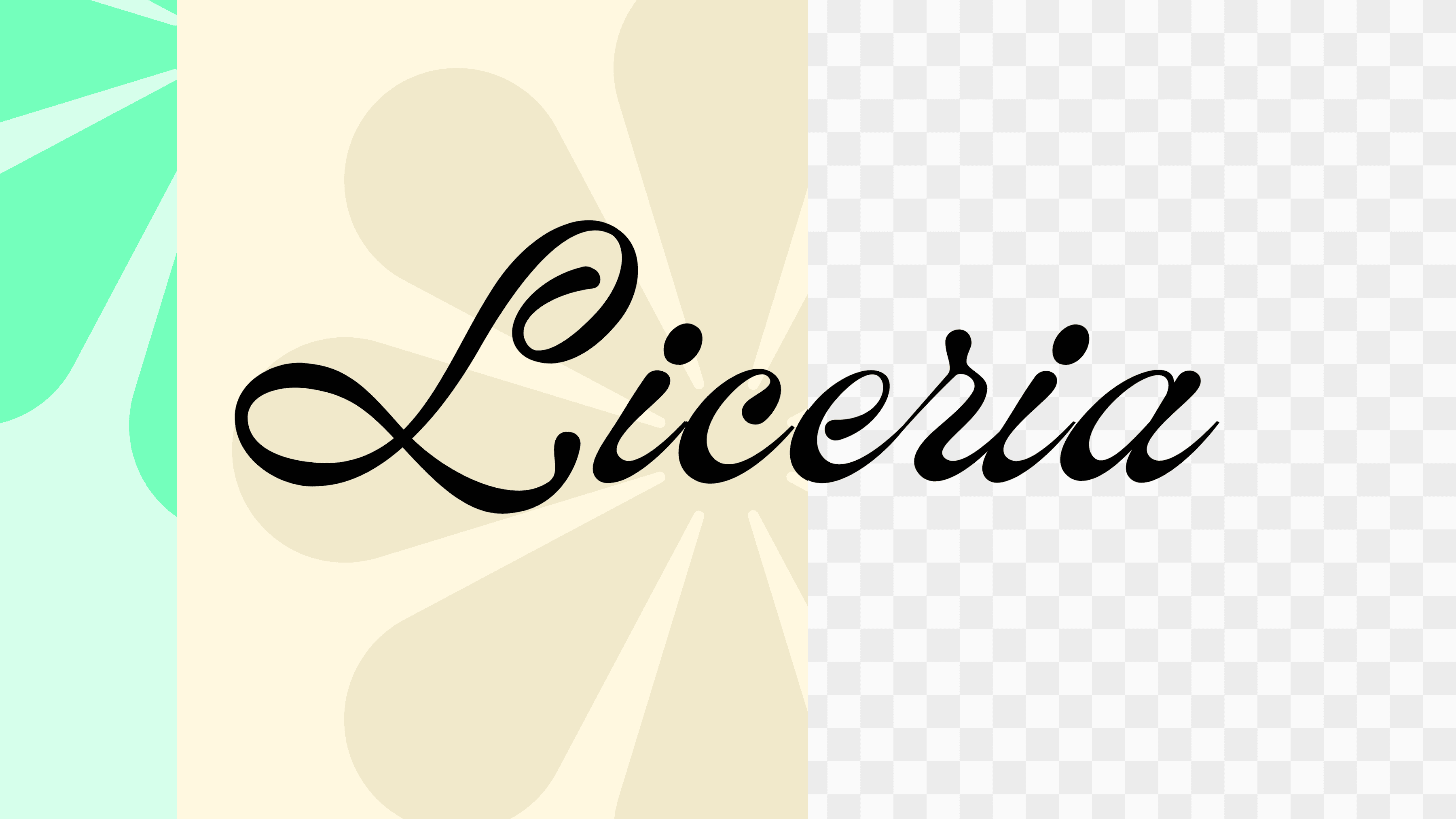
A fast, simple, and online signature extractor
There’s no need to download software or struggle with manual editing just to attach an e-signature. Our Background Remover lets you remove the background from a signature online in a few easy steps. Simply upload your image, and instantly download your new transparent background signature, ready to use in any design or document with minimal editing.
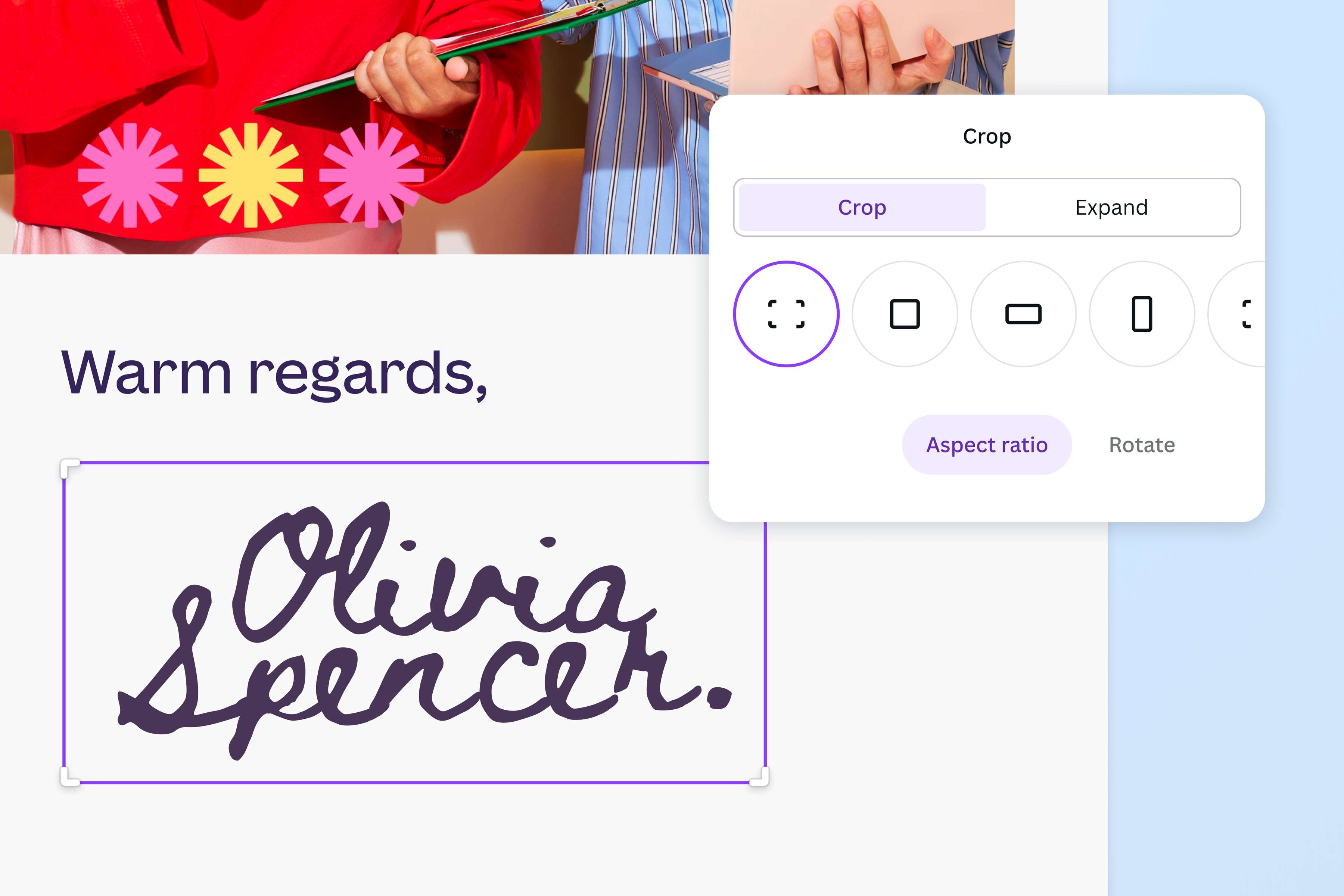
Polish your e-signature with our intuitive editing tools
Make adjustments to your signature with the help of our easy-to-use editing tools. Crop, rotate, flip, or change the size and opacity of your image. You can also adjust its intensity, texture, and color, or even select a new background color.
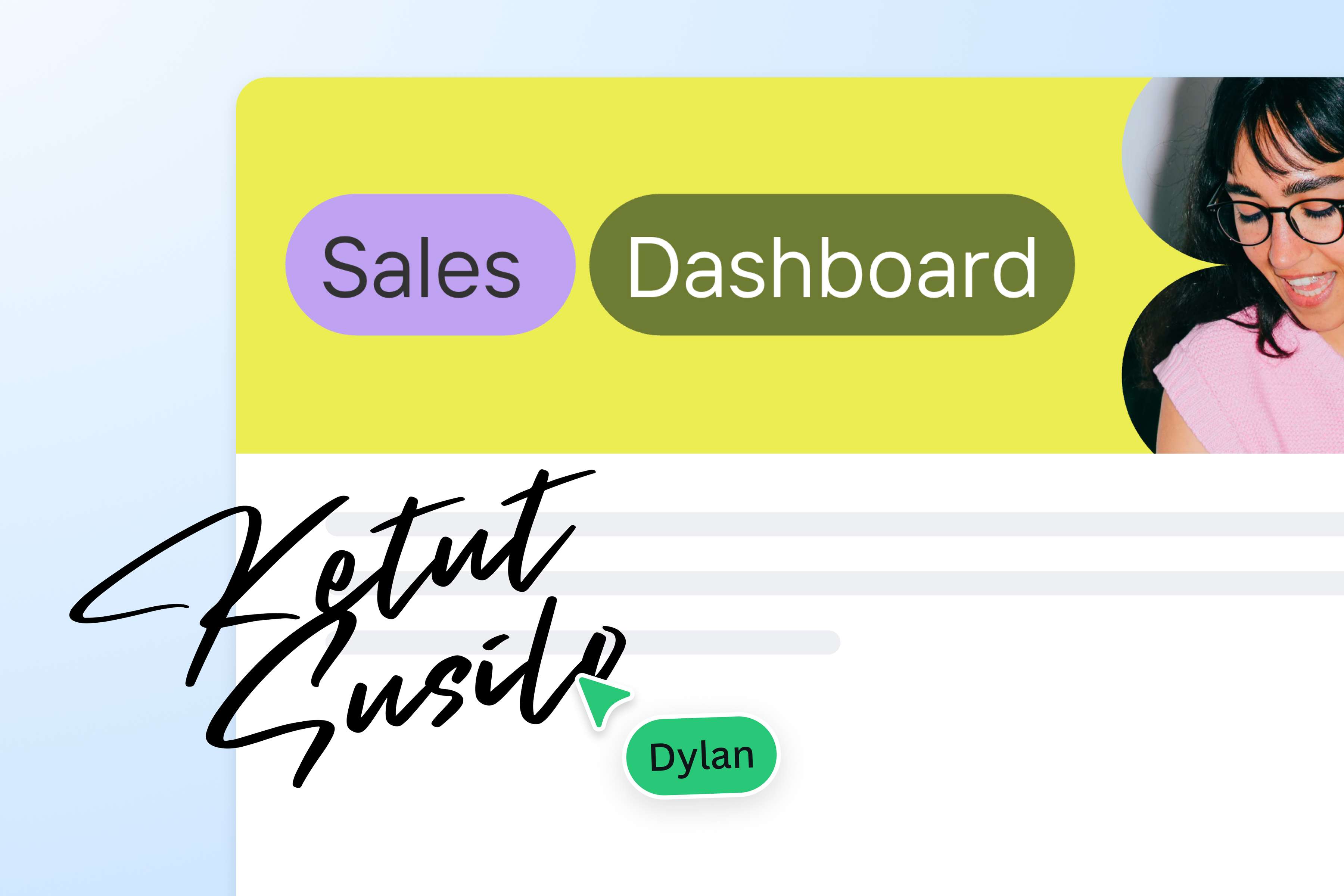
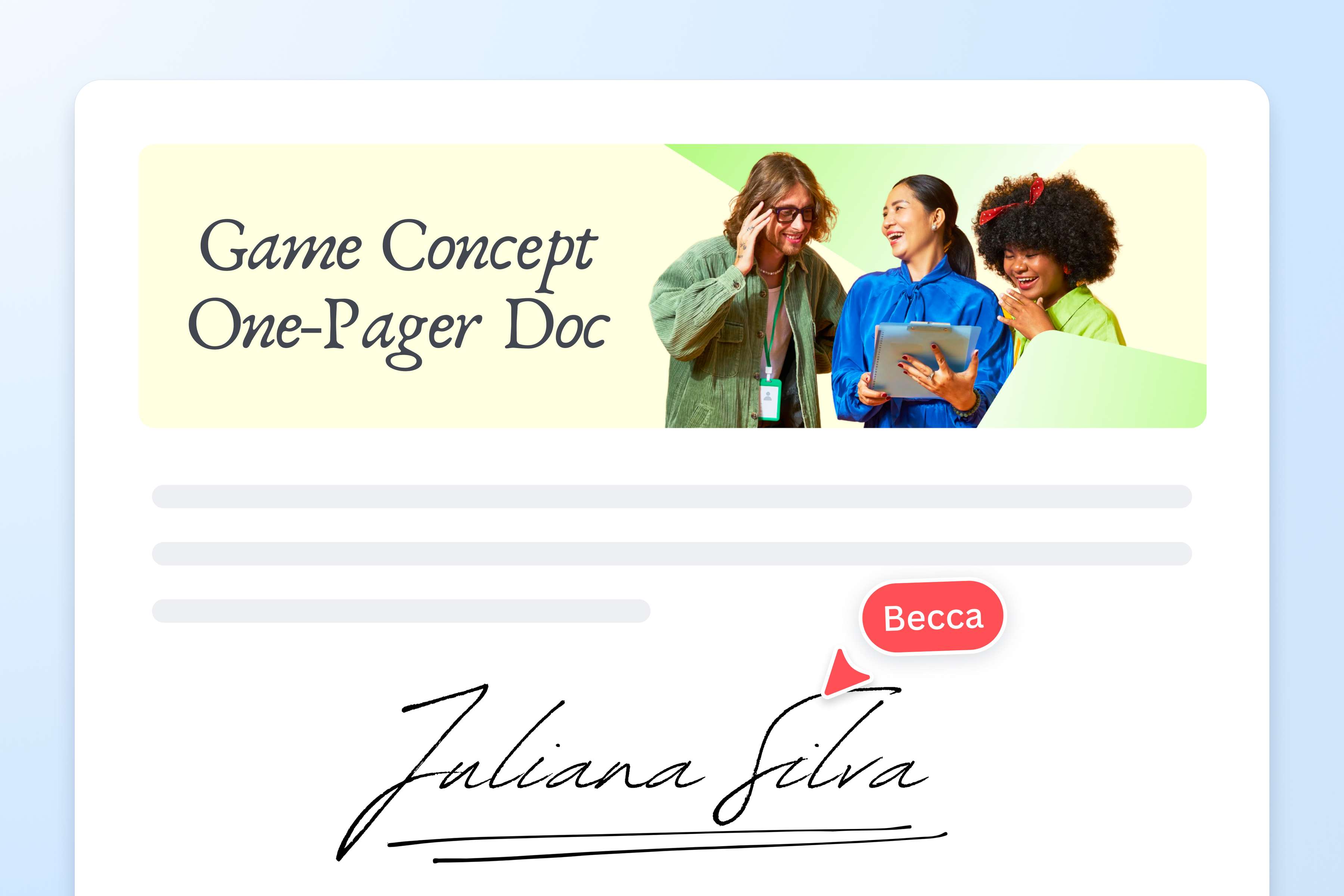
Drag and drop your signature to new and existing projects
When you remove the background from a signature, you’re left with a transparent image that can blend smoothly with different colors schemes and backgrounds. Easily drag and drop your signature into new and existing projects on Canva.
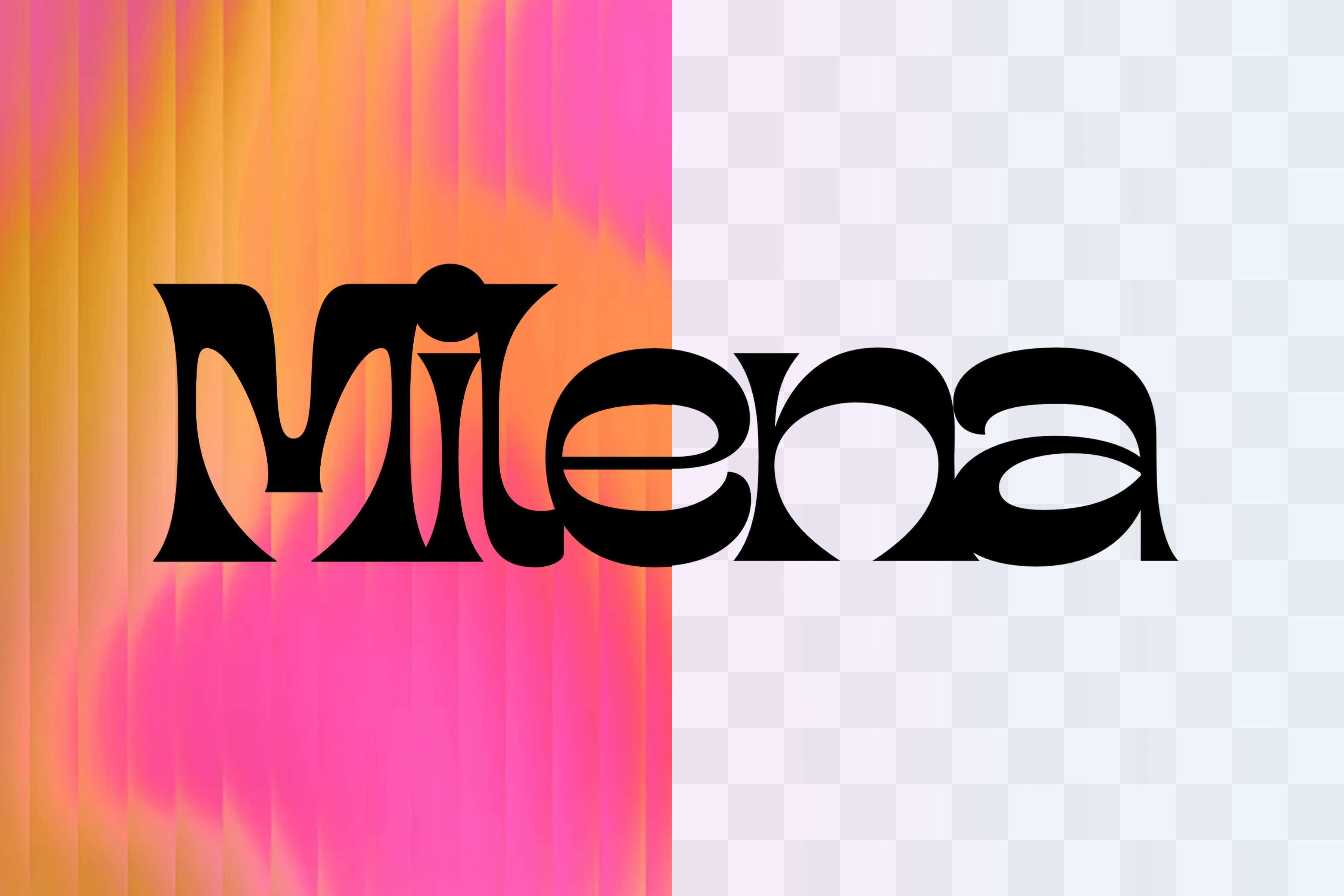
More than just a background remover for signatures
Canva also has other tools that remove backgrounds for a wide array of images, whether that’s people or objects. Remove a distracting background from GIFs, clean up logos, or erase white backdrops from images.
How to remove the background from a signature
Upload your signature
Upload your image, or drag and drop it into the tool. JPG, PNG, HEIC, and SVG files are all supported.Remove the background automatically
Sit back as Canva removes the background from your signature the moment you upload it.Check the result
Your transparent signature will now appear right on the page. Compare it with the original, or upload another file.Download your signature
Download your signature as a transparent PNG, ready to attach to your documents.Edit further in the Canva editor
Want to make more changes? Open it in the Canva editor to resize, adjust, or add to a design.